Sign In, Sign Out and Privacy
Sign in, with Google or with a code sent to your email, to download your maps, manage the account, and decide whether the editor may share usage statistics.
Editing needs no account: every tool, the draft in your browser and opening files work without one. Only downloading
the .xodr file needs you to be signed in. The legal texts are the
Terms of Service and the Privacy Policy; this page
describes what the editor does, not what they say.
Sign in
- Click Sign in at the right of the toolbar, or choose File → Sign in to save (the Save command reads so while you are not signed in and the map has a road). In a narrow window Sign in may be in the ⋯ menu at the end of the row.
- A dialog, Sign in, says that downloading the
.xodrneeds an account, that whichever way you sign in ODRMaker asks only for your email address, and that signing in means agreeing to the Terms of Service and acknowledging the Privacy Policy. Both are links and open in a new tab. Cancel (or Esc) leaves you as you are: nothing is sent. - Choose how to sign in: Continue with Google (see With Google), or, under Sign in with a code by email, your address (see With a code by email). The second way is offered only when the server can send email; without it the dialog has no Sign in with a code by email part.
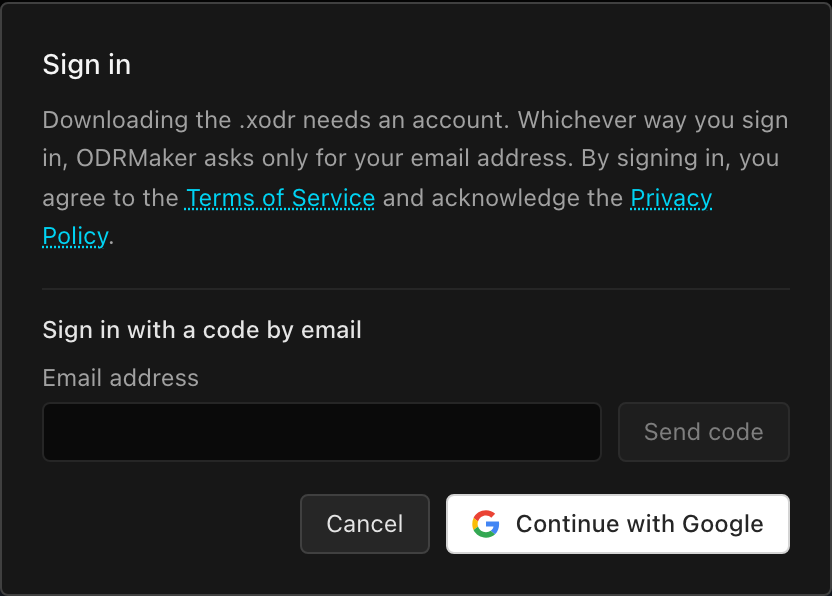
Both ways lead to the same account when the email address is the same: signing in with a code to the address of your Google account, or the other way round, does not create a second one.
With Google
- In the dialog, click Continue with Google. The tab goes to Google.
- Sign in there and allow ODRMaker to see your email address. What Google sends is listed in the Privacy Policy, section 4.
- Google sends you back to the editor, signed in. Your map is on the canvas again, and File → Save saves it (see Save and Export).
Your map survives the trip to Google. Leaving the page would normally lose everything not saved, so right before the tab goes the editor writes the map to the browser's storage, and it opens that copy when you come back. The undo history does not come back with it. See Recover a Draft.
If the editor cannot reach the sign-in service when you click Continue with Google, it says Could not start the Google sign-in — the server did not answer. Try again in a moment. and the tab stays where it is, with your map.
With a code by email
- In the dialog, under Sign in with a code by email, type your address in Email address and click Send code (or press Enter).
- The dialog says that a 6-digit code was sent to your address and that it expires in 10 minutes. Check your mailbox, including the spam folder.
- Type the code from the email in Code from the email and click Sign in.
- The dialog closes and you are signed in, in the same tab: the map stays on the canvas as it was, with its undo history, and File → Save saves it (see Save and Export).
Send a new code sends another code to the same address; Use another address goes back to the address field. When something goes wrong, the dialog says so under the field and stays open:
| Message | What to do |
|---|---|
| That does not look like an email address. | Correct the address. |
| That code is not right. Check the email and try again. | Type the code again; after three wrong tries the code stops working. |
| Too many wrong tries — that code no longer works. Send a new one. | Click Send a new code. |
| That code has expired. Send a new one. | Click Send a new code; a code lasts 10 minutes. |
| We couldn’t send the email right now. Try again in a few minutes, or continue with Google. | The server could not send the email. Click Send code again later, or use Continue with Google. |
| Too many codes asked for — wait a while and try again. | An address gets three codes an hour; wait and try again. |
| The server did not answer. Try again in a moment. | Try again later. |
When signing in is not offered
While the editor is still checking whether you are signed in, or when the service does not answer at all, Sign in is not on the toolbar and Save is disabled with a tooltip that says why (see Save and Export).
Sign in from Start a new map
The Start a new map? dialog (File → New, see Start a New Map) has a button Sign in to save while you are not signed in. It goes to Google straight away, without the dialog above that names the Terms of Service and the Privacy Policy. Your map is kept the same way, and you are signed in just the same when you come back.
Your account
Once you are signed in, either way, the toolbar shows your email address in place of Sign in. If this browser does not know the address, for example because its storage was cleared, it shows Signed in. Click it to open the account menu, with Sign out and Delete account.
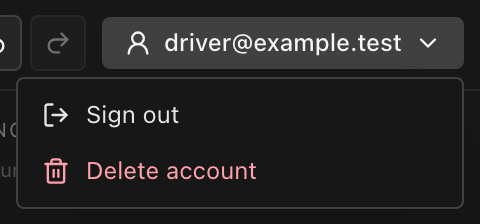
The address is only shown; whether you may download is decided by the sign-in itself, not by this label. An account holds no maps: they live in your browser and in the files you save.
Sign out
Open the account menu and choose Sign out. A message confirms Signed out. You can keep editing; downloading needs an account. and Sign in is back on the toolbar. The map on the canvas, its undo history and the draft in the browser stay as they were.
If the sign-in service does not answer, the editor still signs you out in this tab and says Signed out on this device — the server did not answer, so the session may still be open elsewhere.
Delete your account
- Open the account menu and choose Delete account.
- The editor asks Delete this account?: the account and its sign-in data are removed from the server and this cannot be undone; the map you are editing stays open in this tab, but you will need an account again to download it.
- Click Delete account to delete it, or Cancel (or Esc) to keep it. Cancel sends nothing.
When it is done, a message says Account deleted. Your map is untouched and still open. and you are signed out. The server removes the account and all its sessions at once. What else is kept, and for how long, is listed in the Privacy Policy. To download again later, sign in again.
If the editor cannot reach the server, it says Could not delete the account — the server did not answer. Nothing was deleted. and you stay signed in. If your session has already ended, it says That session has already ended — sign in again to delete the account.
Deleting the ODRMaker account does not touch your Google account or your mailbox. Removing ODRMaker's access in your Google account settings, the other way round, does not delete the ODRMaker account.
Allow or refuse usage analytics
The editor can share basic usage statistics: which of its main features are used and whether they worked. If you allow it, it also reports its own errors (the error and where in our code it happened, never your files or details of your browser) to our error-monitoring service in the EU. Nothing is sent unless you allow it. What is collected, and what is not, is described in the About ODRMaker window and in Privacy Policy → Usage analytics and error reports. Refusing changes nothing in how the editor works.
The first time
The first time you open the editor in a browser, the About ODRMaker window opens over it and asks. Click Allow analytics or Don't allow; both close the window and the editor is ready. Esc counts as Don't allow. The window has no close button, and a click beside it does nothing: it waits for an answer.
The line above the two buttons says that by using ODRMaker you agree to the Terms of Service and confirm that you are at least 16 years old. That holds whichever answer you give.
The answer is remembered in this browser, so the window does not open again. When a new version of the editor starts sending more than before (as the error reports did), the window asks again, whatever you answered earlier. In a private window, or when the browser blocks site storage, it holds only while the page stays open, and the editor asks again on the next visit.
Change your answer
- Open Help at the left of the toolbar and choose About ODRMaker.
- Under Usage analytics and error reports, click the Share usage analytics switch. The line under it reads Allowed on and the date you allowed it, or Not allowed.
- Click Close, the ✕, or beside the window, or press Esc.
The change applies at once, also in other tabs of the editor open in the same browser. Switching analytics off stops the editor sending statistics and error reports and removes the analytics identifiers it kept in your browser; statistics already sent are kept only as long as the Privacy Policy says. Clearing this site's data in the browser settings also resets the answer, and the editor asks again; it signs you out and removes the draft as well (see Privacy Policy → Cookies and storage on your device).
When the Terms of Service or the Privacy Policy change, the About ODRMaker window opens once with a note saying what changed. Got it closes it; your analytics answer stays as it was.
What stays on your device
The About ODRMaker window sums it up under Your files stay on your device: maps are opened, edited and saved in the browser and are not uploaded, and the working copy kept for a reload or a sign-in stays in this browser. Aerial imagery is off until you choose a layer; the tiles then come directly from the agency that publishes them (see Choose a Basemap). The full account of what reaches a server is the Privacy Policy; how to ask for a copy of your data or have it erased is in Privacy Policy → Your rights.
The Help menu
Help, next to File at the left of the toolbar, never moves into ⋯. It holds:
- Documentation — these pages, in a new tab.
- Samples — the example files; choosing one opens it in the editor.
- Contact us… — a form for a question, a bug report, feedback or a feature suggestion; it sends nothing from your map.
- About ODRMaker — the version, what the editor is, the analytics switch, the operator, and links to the Terms of Service, the Privacy Policy and Licences & imagery sources. The legal pages open in a new tab, so the editor and your map stay as they are.